Create a BYOC database
This topic introduces how to create a BYOC database on your organization's sole data plane. Its AWS account and region come from that data plane; you do not choose a separate deployment target or bind a fully managed payment method.
Prerequisites
- Organization Owner or Project Admin.
- The project's data plane is Running. Complete data plane deployment first.
- The organization's license status is Normal or Expiring, usage information is available, and both Query and Storage have enough remaining quota for the requested configuration.
Create the database
- Select the BYOC organization and open its project.
- In the left navigation, click Databases → Create Database.
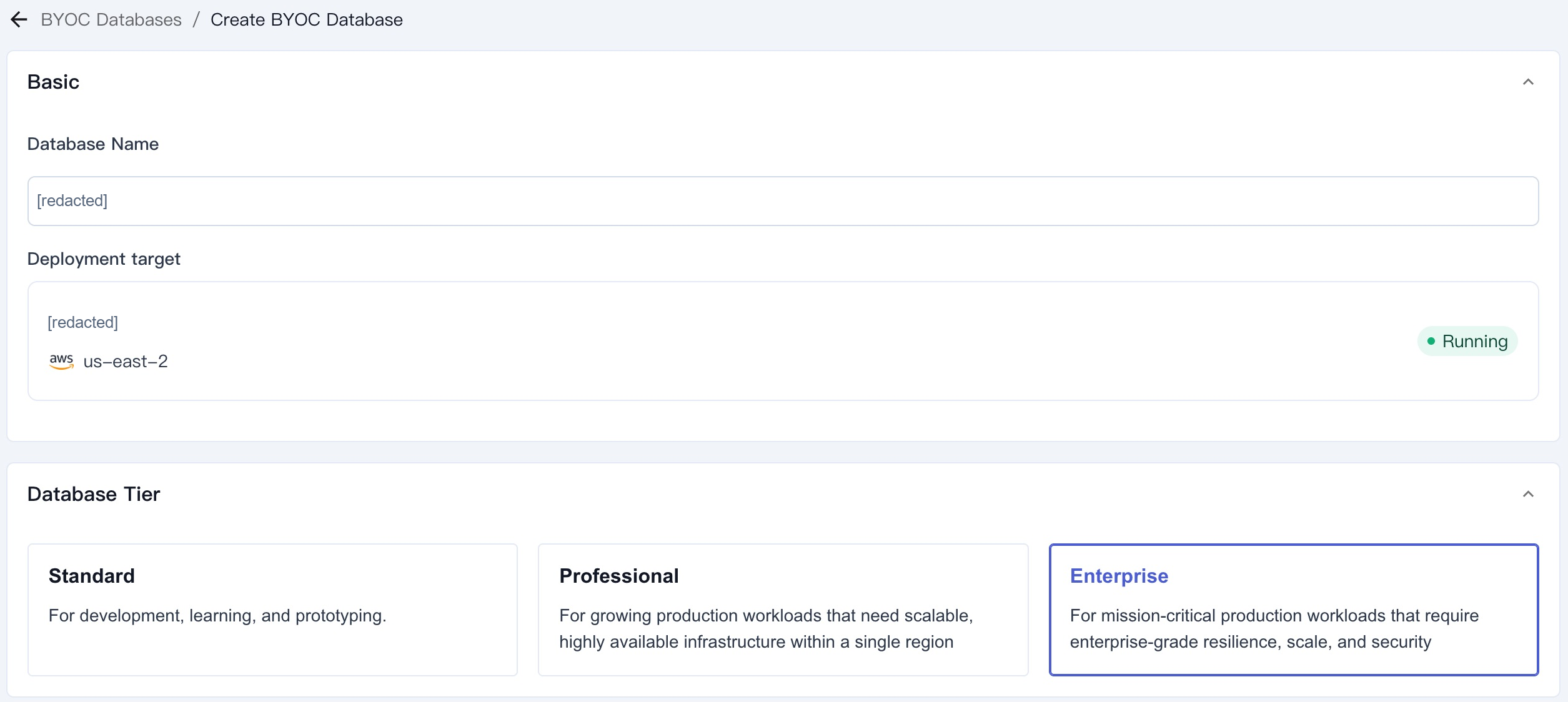
- On Create BYOC Database, enter Database Name under Basic. Check Deployment target, including the data plane name, region, and Running status.
-
Under Database Tier, select an offered tier:
Tier Intended use Capacity configuration Standard Development, learning, and prototyping Node specification and storage size Professional Growing production workloads Query and Storage node specifications and counts Enterprise Production workloads requiring greater resilience and scale Query and Storage node specifications and counts Select from the tiers and specifications displayed for your organization. License pricing and service terms follow your BYOC agreement.
-
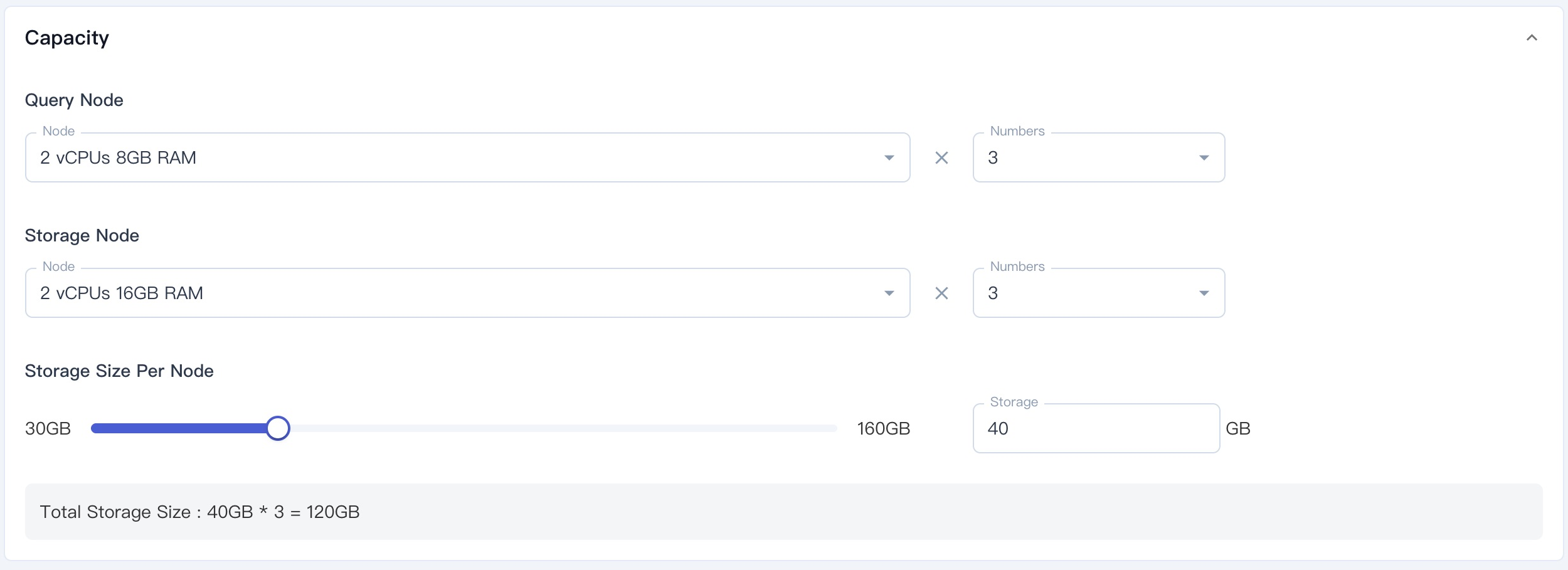
Under Capacity, select the node specification and storage size. For Professional and Enterprise, configure Query Node and Storage Node separately, including Numbers, then Storage Size Per Node.
-
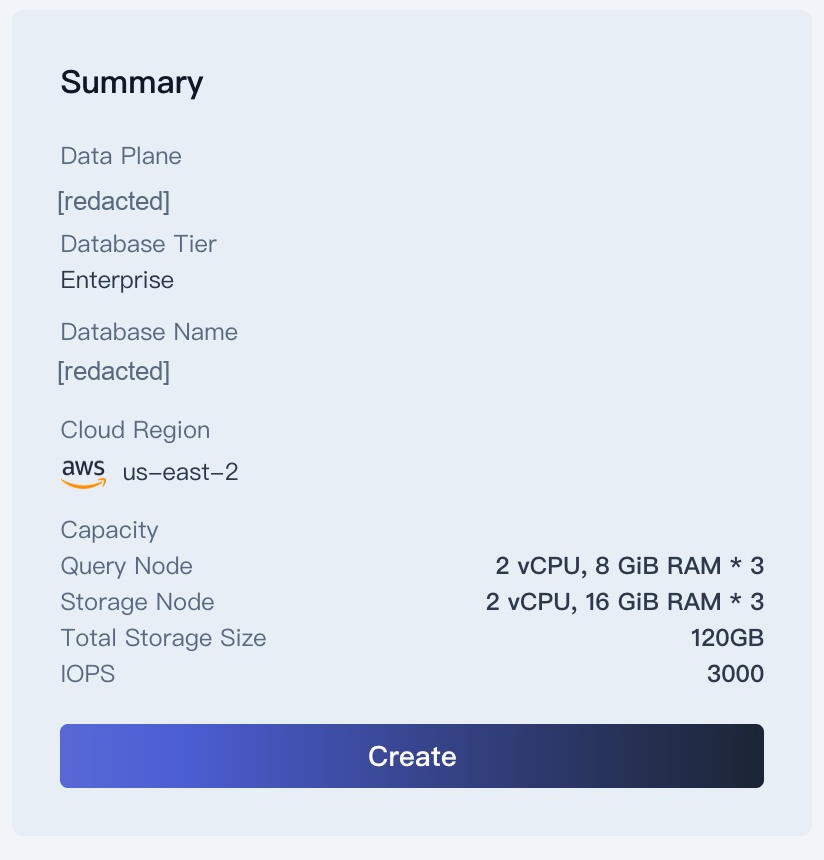
Review Summary. Total storage size is storage size per node multiplied by the number of storage nodes. For example, 40 GB × 3 nodes = 120 GB. License CPU/NODE quota is a separate calculation.
-
Click Create. The platform opens the database's quick-start workflow. Follow its progress and wait until the database is Running before connecting.
Verify and start using the database
Return to Databases and confirm the database name and Running status. Open it and configure network access and database credentials.
Continue with graph management, data import, queries, and exploration.
If Create is unavailable, check the displayed reason, data plane status, license status and remaining quota, and required fields. See Troubleshooting.