Manage graphs
This topic introduces how to manage graphs in NebulaGraph Cloud.
Prerequisites
- A graph type is created. For more information, see Create a graph type.
- To perform the operations in this topic, you must be granted related roles. For more information, see Access control.
Create a graph
Required role: Project Admin
- In NebulaGraph Cloud, switch to the project you want to use, and click the name of the database to view the database details.
- On the left-side navigation pane of the database details page, click Graph under Data.
- In the upper-right corner, click the Create Graph button.
- In the dialog box that appears, select a graph type from the drop-down list and enter a name for the graph.
- Click OK. The newly created graph is displayed on the Graph List page.
Delete a graph
Required role: Project Admin
- In NebulaGraph Cloud, switch to the project you want to use, and click the name of the database to view the database details.
- On the left-side navigation pane of the database details page, click Graph under Data.
- On the Graph List page that appears on the right, select the graph you want to delete.
- Click
 at the right of the graph and then click Delete.
 - In the confirmation dialog box that appears, click Delete.
Manage indexes on graphs
Required role: Project Admin
NebulaGraph Cloud allows you to manage indexes on graphs, including creating, deleting, and rebuilding indexes.
Create an index
Required role: Project Admin
- In NebulaGraph Cloud, switch to the project you want to use, and click the name of the database to view the database details.
- On the left-side navigation pane of the database details page, click Graph under Data.
- On the Graph List page that appears on the right, select and click the target graph.
-
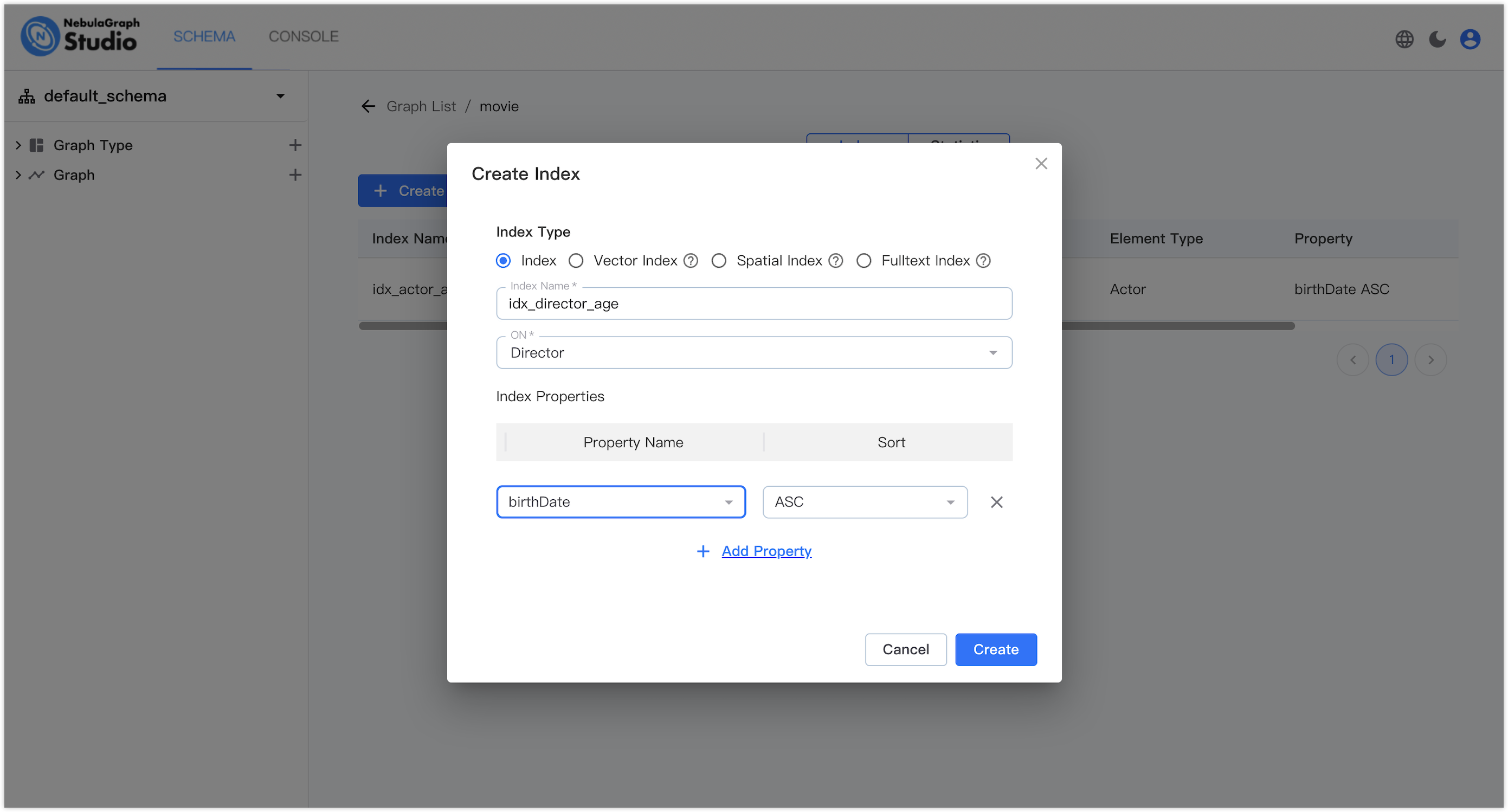
On the Index tab, click the Create Index button. For each index, specify the following information based on its type:
- Index Type: The type of the index. NebulaGraph Studio allows you to create indexes of the following types: Index, Vector Index, Spatial Index and Fulltext Index.
- Index Name: The name of the index.
- ON: The node type or edge type on which the index is created.
-
For a normal index, set Index Properties to the list of properties based on which the normal index is created. Specify at least one property. For each property, specify the following information:
- Property Name: The name of the property.
- Sort: The sorting order of property values in the index. Valid values: ASC and DESC.
-
For a vector index, set Property Name to the
VECTORproperty based on which the vector index is created and can configure the following settings: -
For a spatial index, set Property Name to the
GEOGRAPHYproperty based on which the spatial index is created and configure the following settings: -
For a full-text index, set Property Name to the
STRINGproperty based on which the full-text index is created. - Click Create to create the index.
For more information about the GQL syntax for creating indexes, see Indexes overview.
Delete an index
Required role: Project Admin
- In NebulaGraph Cloud, switch to the project you want to use, and click the name of the database to view the database details.
- On the left-side navigation pane of the database details page, click Graph under Data.
- On the Graph List page that appears on the right, select and click the target graph.
- On the Index tab, select the index you want to delete.
- Click the delete icon at the right of the index to delete it.
Rebuild an index
Required role: Project Admin
- In NebulaGraph Cloud, switch to the project you want to use, and click the name of the database to view the database details.
- On the left-side navigation pane of the database details page, click Graph under Data.
- On the Graph List page that appears on the right, select and click the target graph.
- On the Index tab, select the index you want to rebuild.
- Click the Repair button to rebuild the index data.
View statistics about a graph
Required role: Project Admin or Project Member
- In NebulaGraph Cloud, switch to the project you want to use, and click the name of the database to view the database details.
- On the left-side navigation pane of the database details page, click Graph under Data.
- On the Graph List page that appears on the right, select and click the target graph.
- Click the Statistic tab.
- To view the latest statistics, click the Execute Stats button to update the statistics about the graph. The statistics provide information about the number of nodes and edges in the graph.