Data import
This topic introduces how to import data into NebulaGraph Cloud.
Data import is available for both fully managed and BYOC databases. BYOC databases provide the same data import workflow and features as fully managed databases.
Prerequisites
- A database instance is created. For more information, see Create a database instance.
- A graph type and a graph are created. For more information, see Graph management.
- To perform the operations in this topic, you must be granted related roles. For more information, see Access control.
Create an import task
Required role: Project Admin
-
In NebulaGraph Cloud, switch to the project you want to use, and click the name of the database to view the database details.
-
On the left-side navigation pane of the database details page, click Import > Import Data to create an import task, which includes uploading files, configuring files, and mapping data.
Step 1. Select a graph and upload files
-
In the upper-left corner of the Import page, select a graph from the Load to Graph drop-down list for data import.
-
On the Select source tab, choose one of the following data sources to upload data, then click Next.
- Local file: Upload CSV files from your local machine. The size of each file must be less than 400 MB.
-
Amazon S3: Click +Add, enter your Amazon S3 URL and click Connect. You can add up to 10 Amazon S3 URLs. Only CSV files are supported.
When the Amazon S3 data source requires authentication, configure the AWS access key ID and secret access key. If you use temporary AWS security credentials, also configure the corresponding session token. The session token is not required when you use long-term AWS credentials.
Step 2. Preview files
-
On the Preview files tab, check the uploaded data files.
Note
The preview displays the first 5 rows of each file. If the file has a header row, it is included in the 5 rows shown.
-
In the upper-right corner of each file, click
 and specify the following items:
- Separator: Specify a character to separate the fields in the data file. Default value:
,. - Use First Row as Header: If your files have headers in the first row, select Yes. Otherwise, select No to exclude headers from data mapping in Step 3 and the system automatically generates column names as
column1,column2, and so on.
- Separator: Specify a character to separate the fields in the data file. Default value:
-
Click Apply to apply the changes to the current file or click Apply to All Files to apply the changes to all files.
-
Then click Next.
Step 3. Map data and check mappings
-
Configure data mappings. The Mapping tab provides two ways to configure data mappings:
- Left panel: Manually select types, files, and column mappings using form controls.
- Right canvas: Click a node type or edge type directly on the graph visualization to select it. The Type field on the left panel automatically updates to match your selection, allowing you to proceed with file and column mapping from there.
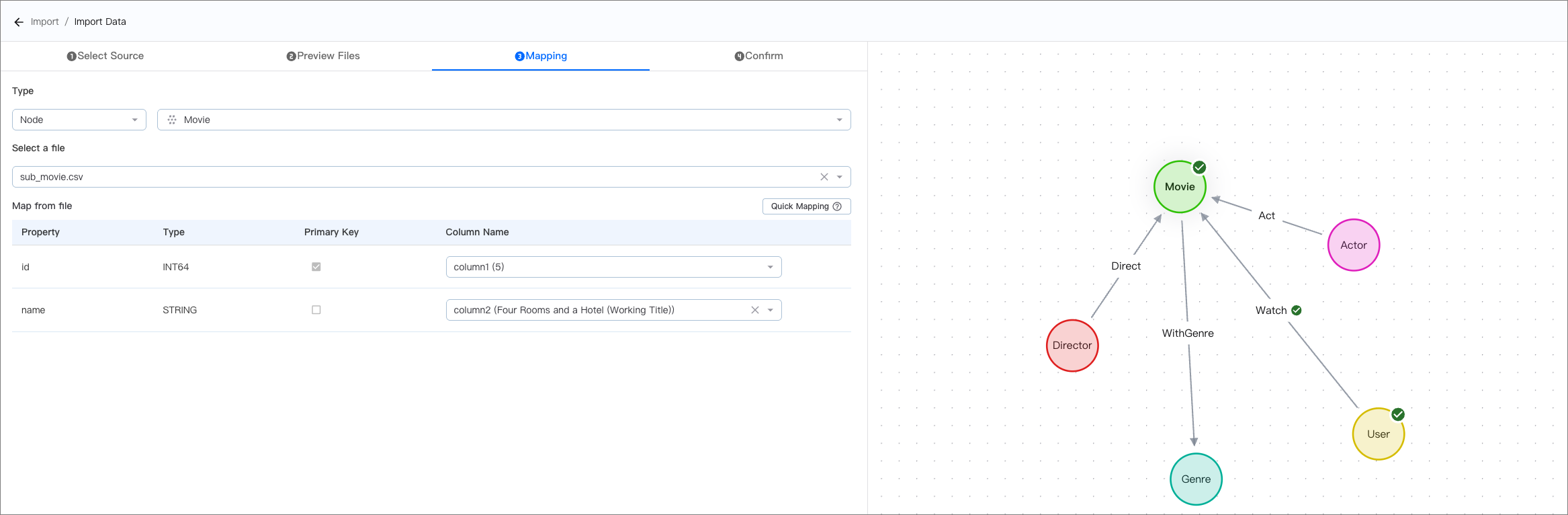
Both approaches are equivalent — use whichever is more convenient. The canvas and the left panel stay in sync: changes made on either side are reflected on the other in real time.
To complete the mapping, specify the following items on the left panel:
- Type: Select a node type or edge type with its name. Alternatively, click the corresponding type on the right canvas to auto-populate this field.
- Select a file: Select an uploaded file.
-
Map from file or Direction: Map data from specified columns to graph type properties using the following methods.
- To map data individually, select each column name from the file.
- To map data in batches, click Quick Mapping on the right side. If the column name matches the property name, the system maps them automatically. If they do not match, the system maps them sequentially.
Note
In the Column Name drop-down list, each column name is followed by a value in parentheses, for example
column1 (4). This value is from the last row of the preview data (i.e., the 5th row) to help you identify the content of each column.
-
Click Next.
-
On the Confirm tab, check the mapping information.
-
Click Import to start the import task.
-
On the Import page, view the task status.
You can go to the Query or Explore page from the left navigation pane to view the imported data. For more information, see Explore graph and Data query.
For a detailed example about mapping, see Best practice for mapping.
Manage import tasks
You can view import tasks and perform actions on these tasks on the Import page.
View import tasks
Required role: Project Admin or Project Member
-
In NebulaGraph Cloud, switch to the project you want to use, and click the name of the database to view the database details.
-
On the left-side navigation pane of the database details page, click Import.
-
On the Import page, you can view the import tasks. The task list includes:
- ID: The import task ID.
- Graph: The graph where the data is imported.
- Status: The status of the import task, including Finished, Running, Failed, Stopped, Stopping and Queued.
- Created At: The time when the import task was created.
- Import Duration: The time taken to import data.
- Actions: You can perform different actions on tasks in different statuses. For more information, see Perform actions on import tasks.
Perform actions on import tasks
-
In NebulaGraph Cloud, switch to the project you want to use, and click the name of the database to view the database details.
-
On the left-side navigation pane of the database details page, click Import.
-
On the Import page, you can perform the following actions on import tasks in different statuses:
| Task status | Supported actions | Descriptions | Required role |
|---|---|---|---|
| Finished | View details | You can view details for finished tasks, including their status, import duration, average QPS, total records, successful records and failed records. | Project Admin or Project Member |
| Explore graph | For finished tasks without any failed nodes or edges, you can click Explore Results in the detail pane to start data exploration. This will automatically navigate to the Explore page and create the canvas for the corresponding graph. | Project Admin |
|
| Delete task | You can delete finished tasks without affecting the imported data. | Project Admin |
|
| Download error logs | For finished tasks with failed nodes or edges, you can download the error logs in the status column for troubleshooting if they are provided. | Project Admin |
|
| Failed | Retry task | You can retry failed tasks. After you retry a task, its status changes to Queued and then to Running. |
Project Admin |
| Delete task | You can delete failed tasks without affecting the imported data. | Project Admin |
|
| Download error logs | For failed tasks, you can download the error logs in the status column for troubleshooting if they are provided. | Project Admin |
|
| Running | Stop task | You can stop running tasks. After you stop a task, its status changes to Stopping and then to Stopped. |
Project Admin |
| Delete task | You can delete running tasks without affecting the imported data. | Project Admin |
|
| Stopped | Resume task | You can resume stopped tasks. After you resume a task, its status changes to Queued and then to Running. |
Project Admin |
| Delete task | You can delete stopped tasks without affecting the imported data. | Project Admin |
Best practice for mapping
Required role: Project Admin
To show you a best practice for mapping in NebulaGraph Cloud, we take the following local files and graph type of the demo dataset as an example.
| Demo file to be imported | Node/edge type | Property |
|---|---|---|
sub_user.csv: Contains the information about users. |
User | id |
sub_movie.csv: Contains the information about movies. |
Movie | id and name |
sub_user_watched_movies.csv: Contains the information about the relationship between users and movies. |
Watch | rate |
Before you start, make sure:
- Demo files are downloaded. You can click the above file names to download files directly.
- The node types
UserandMovie, the edge typeWatch, and the graphmovieare created according to the demo dataset. For more information, see Create a graph type and Create a graph. - Step 1 and Step 2 are completed.
Follow the steps below to map the data in sub_user.csv, sub_movie.csv, and sub_user_watched_movies.csv to the node types User and Movie, and the edge type Watch, respectively.
-
In the upper-left corner of the Import page, select the graph
moviefrom the Load to Graph drop-down list. -
On the Mapping tab, specify the items according to the table. You can either select each type from the Type drop-down list on the left panel, or click the corresponding node/edge type on the right canvas to auto-populate the Type field.
Type Select a file Direction Map from file Node: User sub_user.csv NA Property id⬅ Column nameuser_id(187)Node: Movie sub_movie.csv NA Property id⬅ Column namemovie_id(4)
Propertyname⬅ Column namename(Estado De Sitio)Edge: Watch sub_user_watched_movies.csv From: Primary key id⬅ Column nameuser_id(187)
To: Primary keyid⬅ Column namemovie_id(1)Property rate⬅ Column namerate(3.5)Note
The value in parentheses
()next to each column name is from the last row of the preview data (that is, the fifth row of the file), helping you identify the content of each column. -
Click Import once you have mapped all the data.