BYOC license and costs
BYOC uses a license supplied and configured when your BYOC organization is provisioned. You do not install, upload, or activate it. Use the organization's License page to inspect validity and capacity; use your commercial agreement for license pricing and your AWS bill for infrastructure costs.
View the license
- Select the BYOC organization from the top organization menu to open its organization view.
- Click License in the left navigation.
- Under License Overview, check status, Deployment Type, Quota Type, and Expires At.
- Under Quota Usage, check Query and Storage, including Used capacity and Remaining capacity. These are separate licensed resource pools.
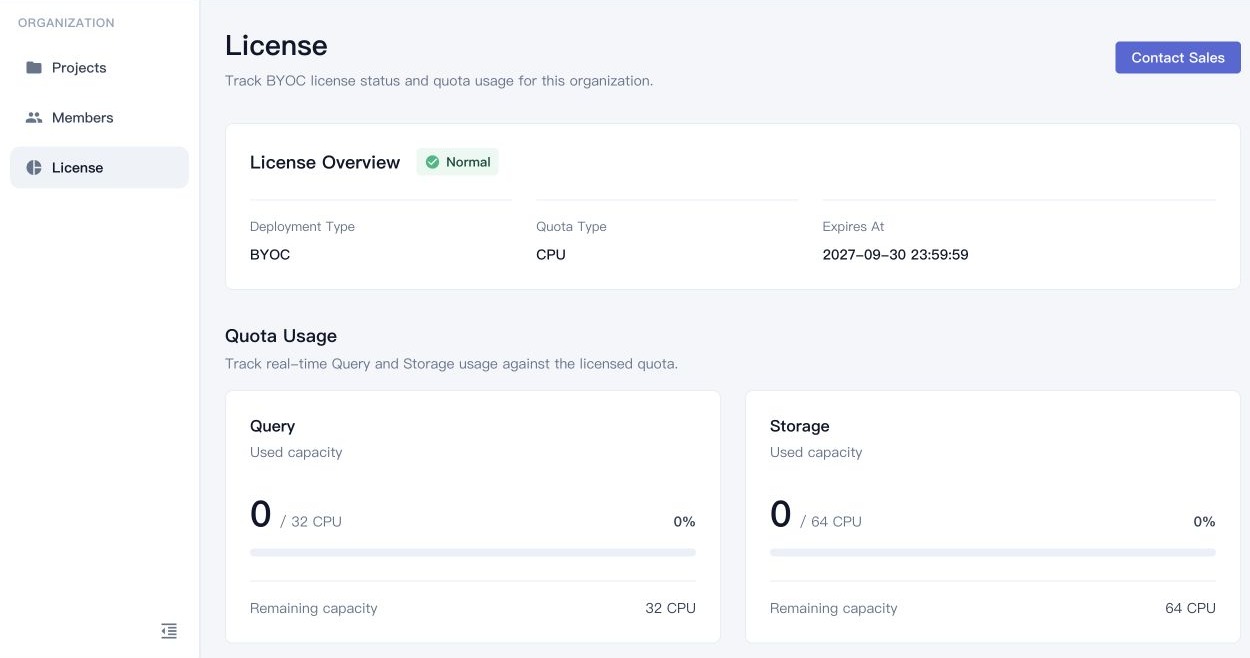
Your BYOC agreement determines your license expiry date and quotas. View these values on your organization's License page.
Quota calculation
Quota describes configured database capacity, not instantaneous CPU utilization, query volume, or a price per CPU-hour.
| Quota Type | Query usage | Storage usage |
|---|---|---|
| CPU | vCPUs per query node × query node count | vCPUs per storage node × storage node count |
| NODE | Query node count | Storage node count |
For example, 3 query nodes with 2 vCPUs each use 6 Query CPU; 3 storage nodes with 4 vCPUs each use 12 Storage CPU. With NODE quota, the same configuration uses 3 Query and 3 Storage nodes. The two pools cannot borrow from each other.
For Standard, the license accounts for the selected node specification as one Query node and one Storage node. A 2-vCPU Standard specification therefore requests 2 Query CPU and 2 Storage CPU, or 1 node in each pool for NODE quota. These amounts are deducted from the separate Query and Storage license pools.
For creation, both requested amounts must fit their respective remaining quota. For resizing or scaling, the increase over the database's current capacity must fit the corresponding remaining quota. For example, increasing Query from 6 CPU to 12 CPU needs another 6 Query CPU; it does not require 12 additional CPU.
Status and capacity checks
- Normal: creation and capacity changes can proceed when the requested resources fit.
- Expiring: the same capacity checks apply. Use Contact Sales to arrange renewal before Expires At.
- Expired, missing license data, or a license-service error: creation and capacity operations are unavailable. Retry loading if necessary or contact sales/support.
- Insufficient Query or Storage quota: reduce the requested capacity or arrange a larger licensed quota.
When a usage warning appears, check that the requested configuration fits both remaining quota pools before creating a database. Arrange renewal before Expires At. For license-expiration terms affecting existing databases, refer to your BYOC agreement or contact your service representative.
Separate license fees from AWS costs
| Cost | Where to check |
|---|---|
| NebulaGraph Cloud BYOC license | Your commercial agreement and Contact Sales |
| AWS compute, storage, network, and other resources in your account | AWS billing and cost-management tools |
BYOC license fees follow your agreement, and AWS resource charges appear on your AWS bill. After suspending a database, check the AWS costs of retained storage and network resources. Refer to your BYOC agreement for license fees during suspension.
For renewal or quota changes, click Contact Sales on License and provide your organization and required capacity. Do not include AWS credentials or database passwords. For deployment cleanup, see Manage the data plane and databases.